This connects your Google Calendar so every appointment you create, change, or cancel in NextAccord is copied to Google and its attendees get a Google invitation. Google changes are not read back into NextAccord.
Who can do this
- Owners and Admins — can do this for any record or setting in the account.
- Agents and Assistants — can do this only for records they are assigned to.
Roles are predefined by NextAccord. See all roles & permissions
Before you start
- You can create and manage appointments in this account.
- Connected calendar is available on your plan.
- You are signed in to the Google account whose calendar you want to use.
Example
Illustrative example
You add a "Buyer showing — 14 Oak St" appointment in NextAccord for Thursday 3:00 PM and add the buyer as an attendee.
Within about a minute the event appears on your Google Calendar and the buyer receives a Google invitation.
You move it to 4:00 PM in NextAccord; the Google event moves too. You cancel it in NextAccord; the Google event is cancelled.
Steps
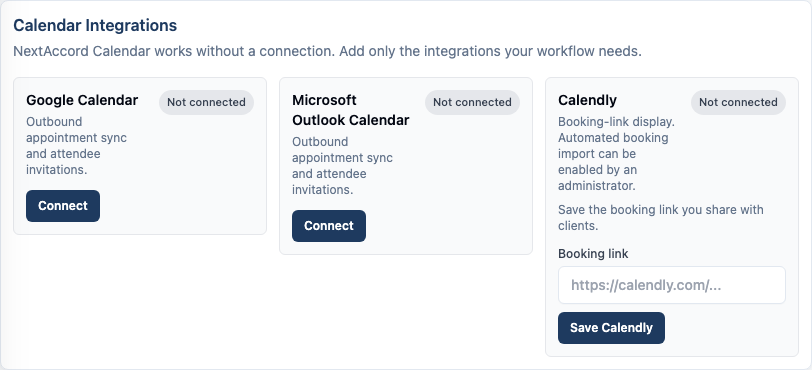
- Step 1: Open Settings and find the Calendar Integrations panel (Connections & Integrations → Calendar Integrations).
- Step 2: On the Google Calendar card, choose Connect.If the button is disabled and the card says connections are not available, Google is not configured for this deployment — contact your administrator.
- Step 3: Sign in to Google and grant the calendar permission when prompted. You are returned to Settings.
- Step 4: Confirm the Google Calendar card now shows a connected status and your Google account or calendar name.
- Step 5: Create a test appointment in NextAccord and check it appears on Google.
What success looks like
- The Google Calendar card shows a green connected status with your account or calendar name.
- A new NextAccord appointment appears on your Google Calendar within roughly a minute.
- Attendees you add in NextAccord receive a Google invitation.
Common problems
- The Connect button is greyed out.
- Google Calendar is not enabled for this deployment. The card shows "connections are not currently available" — an administrator has to configure it.
- Appointments are not showing up on Google.
- Open the Google Calendar card. If it asks you to reconnect, choose Reconnect and grant access again. Sync also depends on the background sync worker being enabled for the deployment.
- A change I made in Google did not come back to NextAccord.
- That is expected — Google sync is one-way. Edit the appointment in NextAccord and the change flows out to Google.
Reconnect or remove
- Reconnect: if access expires or scopes change, the card shows it needs attention — choose Reconnect and approve again. Your existing mapping is reused where possible.
- Disconnect: choose Disconnect on the card. NextAccord stops sending changes to Google. Your internal appointments are preserved ("Calendar connection disconnected. Internal appointments are preserved.").
- Events already copied to Google are not deleted when you disconnect.